

Table of Contents Show
Understanding Google Lighthouse and Why a 100/100 Score Matters
Achieving a perfect Lighthouse score might sound like a trophy for perfectionists, but its value goes far deeper than bragging rights. Lighthouse is essentially Google’s way of checking whether your website meets the technical standards required for modern web performance. When you score 100/100, Google interprets your site as fast, accessible, stable, secure, and search-ready. For real users, this translates to smoother interactions, faster loading, and fewer frustrating delays.
To fully appreciate what this score represents, you need to understand how Lighthouse evaluates your website. Lighthouse doesn’t measure “beauty” or design aesthetic — it measures structural integrity. Think of it like a mechanic inspecting a car: you may have a shiny exterior, but Lighthouse checks the engine, wiring, and responsiveness.
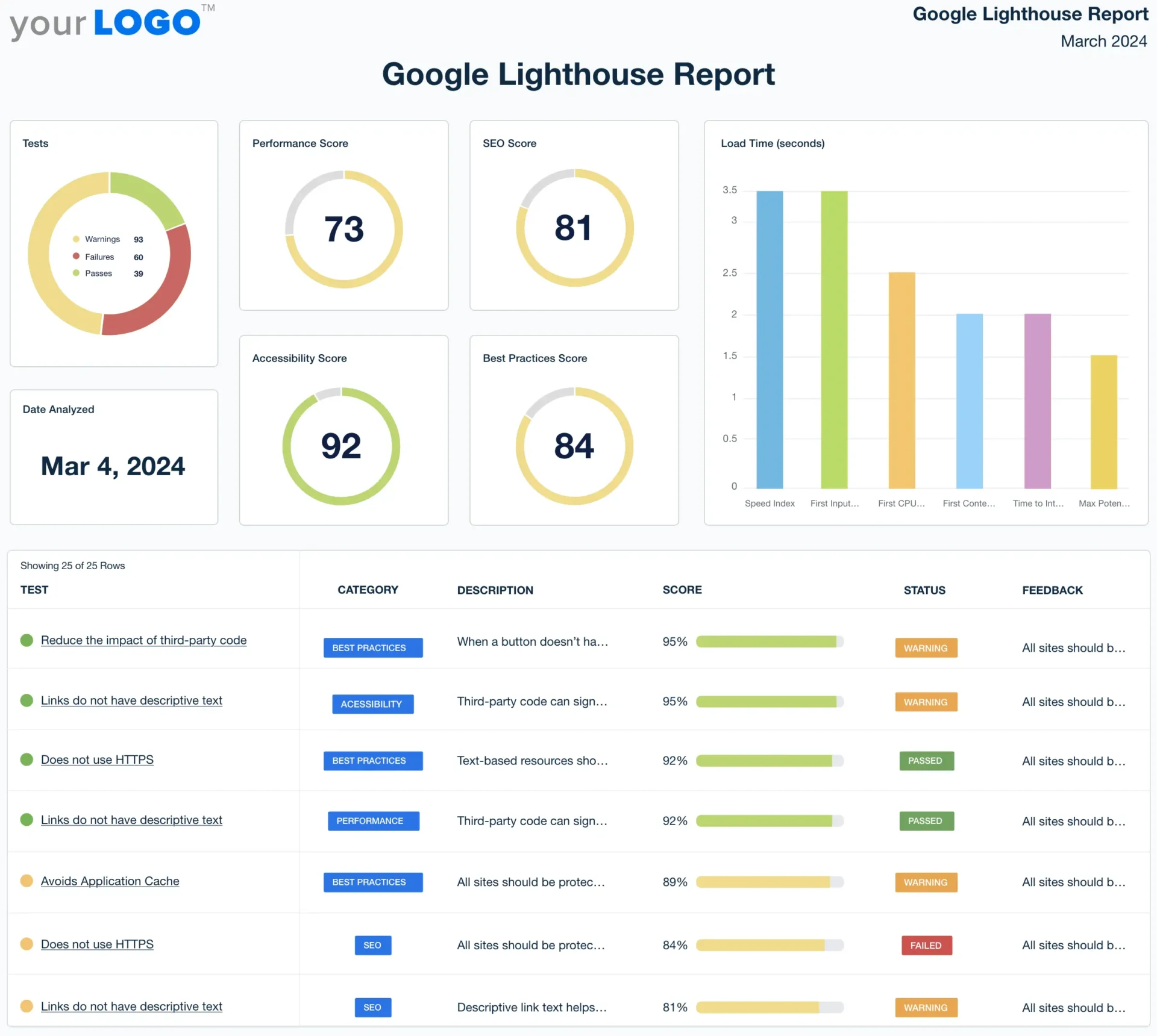
The four categories Lighthouse measures are:
- Performance
- Accessibility
- Best Practices
- SEO
Each of these categories must be optimized to perfection before Lighthouse rewards you with a 100. If even one category falls short, your overall score drops.
Performance carries the heaviest weight and is the most technically complex category. Accessibility requires thoughtful design choices and semantic correctness. Best Practices ensures you’re following modern coding standards. SEO checks whether your content is properly structured for search visibility.
A 100/100 score doesn’t just signal technical excellence — it boosts your credibility with both users and search engines. Google prioritizes fast, stable websites in search rankings, so improving your Lighthouse score naturally supports better SEO outcomes.
Core Metrics You Must Master to Reach 100/100
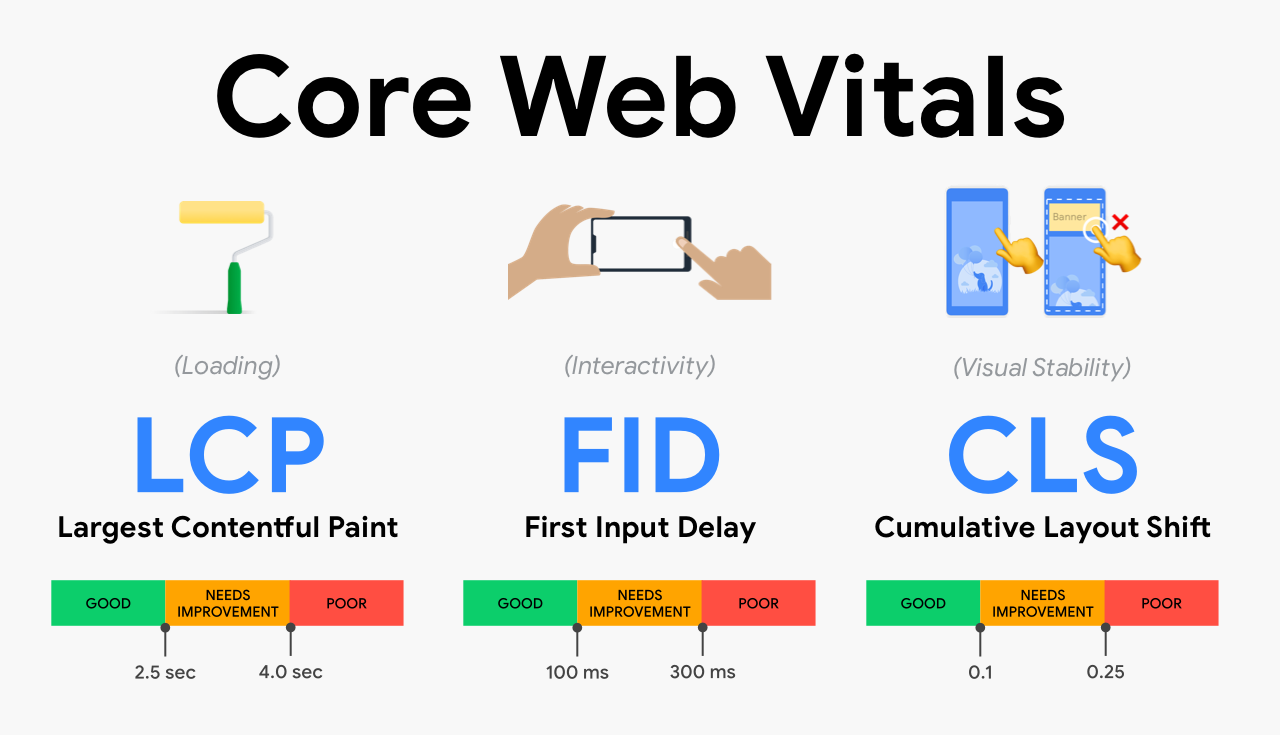
Largest Contentful Paint (LCP)
LCP measures how long it takes for the largest visible element on your page to appear. This is usually an image, heading, or banner. When LCP is slow, the entire website feels slow, regardless of how much content is actually loaded behind the scenes.
A strong LCP (under 2.5 seconds) involves several layers of optimization. First, you must ensure your server responds quickly enough to deliver the initial document. Second, you need to reduce render-blocking resources. Third, your images must be optimized and sized correctly. Any inefficiency in these steps delays the user’s first impression.
LCP is not merely a “nice-to-have.” Google treats it as essential because it reflects how quickly users perceive your site as usable.
First Input Delay (FID) / Interaction to Next Paint (INP)
INP is the updated version of FID and is much stricter. It measures the total time between a user input and the moment the screen visually responds.
This metric is heavily affected by JavaScript execution. If your page loads too many scripts, or if you have long-running tasks on the main thread, the browser becomes unresponsive. Even a small 300ms delay feels jarring because users expect instant feedback.
To improve INP, you must:
- Split heavy JavaScript bundles
- Use lazy loading for non-critical scripts
- Reduce unused JS
- Prioritize user-driven interactions
Excellent INP performance is crucial for hitting a perfect Lighthouse score because it proves your site is genuinely interactive — not just visually ready.
Cumulative Layout Shift (CLS)
CLS measures unexpected layout movement that occurs while the page loads. This is one of the most frustrating issues for users — imagine trying to tap a button and the entire page shifts, causing you to click the wrong thing.
Common causes include:
- Images without width/height attributes
- Ads injected dynamically
- Web fonts causing layout reflow
- Content loading earlier or later than expected
To eliminate CLS, everything on the page must have predetermined boundaries. This prevents jumping content and creates a smooth loading experience.
Time to First Byte (TTFB)
TTFB is one of the most overlooked metrics. It measures how long a browser waits before receiving the first byte of data from the server.
A slow TTFB can ruin your entire Lighthouse score because it delays every render step that follows.
Key causes of poor TTFB include:
- Slow hosting environments
- Heavy backend computations
- Unoptimized database queries
- Lack of caching
- High server latency
To achieve a top-tier TTFB, you often need server-level changes — caching systems, CDN distribution, and database optimization.
Real Techniques to Improve the Performance Score
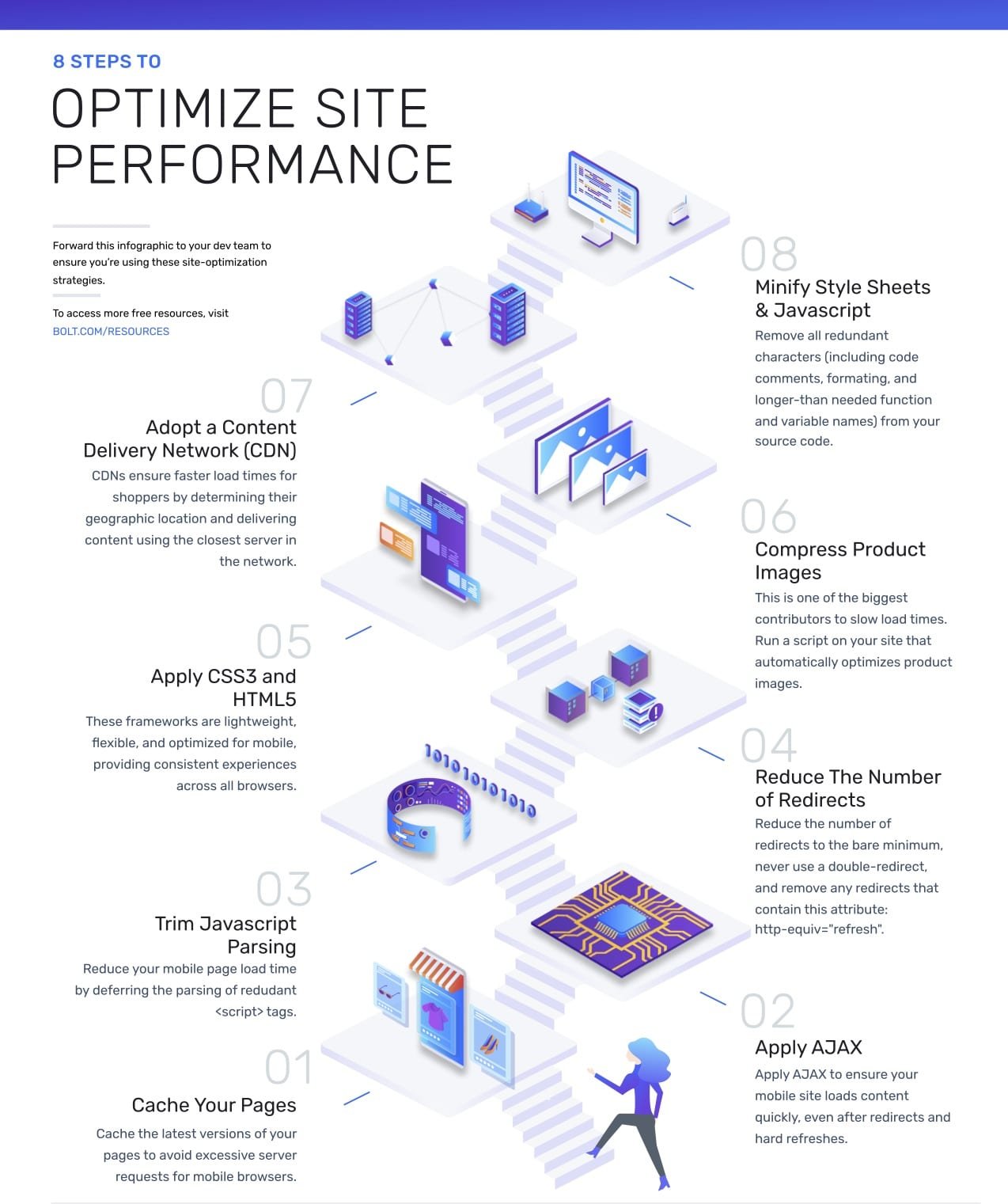
Eliminating Render-Blocking Resources
CSS and JavaScript are the two most common render-blocking resources. Render-blocking means the browser cannot paint the screen until the resource is downloaded and processed.
How CSS Blocks Render
CSS is render-blocking by default because the browser needs to understand layout rules before painting anything. If a site loads a large global stylesheet, the browser must parse the entire file before showing even one pixel.
Solutions include:
- Inlining critical CSS (only the styles needed for the first screen)
- Deferring non-essential stylesheets using media attributes
- Removing dead CSS using tools like PurgeCSS
- Ensuring no large blocking CSS is loaded above the fold
How JavaScript Blocks Interactivity
JavaScript blocks interactivity because it occupies the main thread. During JS execution, the browser cannot respond to user input.
To resolve this:
- Use
asyncanddeferfor scripts - Remove unnecessary libraries
- Split large builds into smaller chunks
- Avoid executing heavy code during initial load
When done properly, this speeds up both initial render and user interaction.
Minimizing JavaScript Payloads in Detail
Reducing JavaScript size is one of the most impactful steps toward 100/100. The browser must not only download JS but also parse, compile, and execute it. On mobile devices, this can take longer than you think.
For example:
- A 300 KB JavaScript file can take over 1 second to parse
- Large frameworks increase bundle size
- Many websites load unused libraries
To minimize JS:
- Replace heavy libraries with lightweight alternatives
- Use tree-shaking to remove unused exports
- Avoid polyfills unless necessary
- Use ES modules for modern browsers
Every byte removed from your JavaScript directly boosts performance.
Using Code Splitting and Lazy Loading Correctly
Many tutorials mention “use lazy loading,” but very few explain how or why it works. Lazy loading is the practice of delaying the loading of non-essential resources until the moment they are needed. This technique dramatically reduces the initial load time because the browser only processes what is required to render the first screen.
Why Code Splitting Matters for Lighthouse
Code splitting ensures your users never download more JavaScript than they need. If your site bundles every component, module, and utility into one massive file, Lighthouse will punish your Performance score severely. The browser must parse the entire script before doing anything else, which leads to:
- Longer Time to Interactive (TTI)
- Higher INP/FID delays
- Sluggish UI responsiveness
With code splitting:
- Users loading the homepage get homepage scripts only
- Routes load route-specific JS dynamically
- Heavy logic is deferred until absolutely necessary
This means your interactivity becomes faster, and your main thread remains significantly less congested.
True Lazy Loading (Not the Fake Version)
Lazy loading must be intentional, not passive. Here’s the difference:
❌ Fake lazy loading:
Loading everything but marking things as “lazy” visually or structurally.
✅ True lazy loading:
Only fetching resources at the exact moment they’re needed.
Examples of true lazy loading:
- Importing components when a user scrolls into view
- Loading analytics scripts 3-5 seconds after idle
- Only loading image galleries when the user opens the gallery
- Dynamically loading heavy libraries such as Chart.js
Lighthouse heavily rewards this because it leads to a smaller initial bundle, faster first render, and better INP.
Image Optimization at a Professional Level
Image optimization is one of the most misunderstood areas in web performance. Many developers believe lowering resolution is enough — but Lighthouse measures multiple dimensions of optimization simultaneously.
Next-Gen Formats (WebP, AVIF) Explained Deeply
Google Lighthouse strongly prefers WebP or AVIF because:
- They offer dramatically smaller file sizes
- They support high-quality compression
- They load significantly faster on slow networks
AVIF produces the smallest files but may require fallback formats for older browsers. WebP is widely supported and performs exceptionally well for most images.
This is why Lighthouse flags “Serve images in next-gen formats” — it’s not optional. It directly affects your Performance score.
Correct Sizing, Preloading, and Compression
Even next-gen formats fail if not sized properly.
Here are the three rules of professional image optimization:
- Never serve images larger than the display size.
A 3000px-wide image displayed at 400px wide is a massive waste of bandwidth. - Preload above-the-fold images.
The browser needs immediate access to hero images to compute LCP quickly.
Example preload:<link rel="preload" as="image" href="hero.avif" />
- Use responsive image syntax.
The browser should choose the best image based on screen size:<img src="hero.webp" srcset="hero-800.webp 800w, hero-1600.webp 1600w" sizes="(max-width: 600px) 400px, 800px">
This allows Lighthouse to detect that you’re delivering the most efficient image possible.
Reducing TTFB: Server-Level Techniques You Must Use
TTFB (Time to First Byte) has an enormous influence on Lighthouse scores because it directly impacts LCP. Even perfect front-end optimization cannot overcome a slow server.
Why TTFB Matters So Much
TTFB reflects:
- Network latency
- Server processing speed
- Database response time
- Caching efficiency
- CDN proximity
A slow TTFB means your browser sits waiting before it can even begin downloading CSS, JS, or images — creating a chain reaction of delays.
Techniques to Dramatically Improve TTFB
1. Use a High-Performance Hosting Stack
Shared hosting often leads to unpredictable TTFB spikes. Upgrading to:
- VPS
- Dedicated hosting
- Edge compute platforms (e.g., Cloudflare Workers, Vercel Edge Functions)
can reduce TTFB by hundreds of milliseconds.
2. Implement Full-Page Caching
Full-page caching stores entire HTML responses so the server doesn’t regenerate pages repeatedly.
3. Use a CDN for Static and Dynamic Content
Not just images — modern CDNs cache HTML, API responses, and even server-side logic.
4. Optimize Database Queries
One slow query can spike TTFB. Techniques include:
- Indexing columns
- Removing unnecessary joins
- Caching query results
- Using Redis or Memcached
5. Enable Brotli Compression
Brotli often reduces payloads better than gzip, helping both TTFB and overall load speed.
By combining these techniques, TTFB can often drop from 800ms to under 100ms — a massive improvement that Lighthouse will instantly reward.
Accessibility Techniques for a 100/100 Lighthouse Score
Accessibility has a dedicated section in Lighthouse, but many developers underestimate how detailed and strict its checks are.
Proper ARIA Usage and When You Should Not Use It
ARIA (Accessible Rich Internet Applications) attributes improve screen reader compatibility only when used appropriately.
Lighthouse penalizes:
- Incorrect ARIA roles
- Redundant ARIA attributes
- Using ARIA instead of semantic HTML
Correct usage involves:
Using <button> instead of </button>
Adding aria-label when text isn’t descriptive
Using aria-expanded for collapsible sections
ARIA should augment, not replace, semantic structure.
Keyboard Navigation and Focus Order
A significant portion of accessibility scoring depends on whether users can navigate without a mouse. Lighthouse checks:
- Natural tab order
- Visibility of focus outlines
- Proper use of
tabindex - Avoiding keyboard traps
If focus jumps unpredictably or disappears entirely, Lighthouse deducts points instantly.
Color Contrast: A Hidden Performance Killer
Many sites fail accessibility checks because designers choose visually appealing but low-contrast color combinations. Lighthouse uses WCAG AA standards:
- Normal text: 4.5:1 contrast ratio
- Large text: 3:1 ratio
If your contrast fails, Lighthouse labels your website as inaccessible regardless of its visual appeal.
Best Practices Section Breakdown
The Best Practices category measures whether the site follows modern, safe development patterns.
HTTPS Enforcement & Security Headers
Lighthouse inspects:
- HTTPS presence
- Mixed content
- Security headers (
CSP,HSTS,X-Frame-Options) - Use of secure cookies
Lack of these headers does not just reduce score — it exposes real vulnerabilities.
Avoiding Deprecated APIs and Console Errors
Deprecated JavaScript APIs often trigger data leaks or functionality failures. Lighthouse checks:
- Console warnings
- Outdated JS usage
- Insecure or obsolete APIs
A clean console is mandatory for top scoring.
SEO Requirements for Hitting 100/100
The SEO section of Lighthouse is often misunderstood. Many developers think SEO is strictly about keywords, backlinks, and content strategy. But Lighthouse isn’t evaluating your content’s ranking potential — instead, it’s measuring the technical foundations that allow search engines to understand, crawl, and index your website efficiently.
These technical rules determine whether Google can properly interpret your page structure, and whether users get a smooth, mobile-first experience. Let’s break down the SEO requirements Lighthouse checks at a deeper level.
Correct Metadata Usage
Metadata is the first thing search engines look for when parsing your page. Lighthouse specifically checks for the following:
1. <title> tag
Your title must:
- Exist
- Be descriptive
- Not be empty
- Not be duplicated across pages
Missing or poorly written titles lead to Lighthouse deductions because search engines rely on the title to classify your content.
2. <meta name="description">
Google uses the meta description for understanding your page and for generating search snippets. Lighthouse penalizes:
- Missing descriptions
- Empty descriptions
- Duplicate descriptions
Each page must have a unique, descriptive summary.
3. <meta name="viewport">
This tells mobile browsers how to scale your page. Without it, users might see a zoomed-out desktop layout on mobile, which Lighthouse considers a major issue.
A correct viewport tag looks like:
<meta name="viewport" content="width=device-width, initial-scale=1">
If you omit this tag, Lighthouse instantly reduces your SEO score.
Structured Data to Enhance Search Visibility
Structured data (schema.org) helps Google understand your page’s purpose and content type. Lighthouse checks if your structured data:
- Is valid
- Follows schema guidelines
- Has no errors
Common structured data types include:
- Article
- FAQ
- Breadcrumb
- Local business
- Product
While Lighthouse does not give bonus points for having structured data, it penalizes incorrect or broken structured data. Therefore, implementing schema correctly helps maintain a perfect score.
Mobile Usability Factors Lighthouse Cares About
A large part of SEO scoring comes from mobile-friendliness. Google uses mobile-first indexing, meaning your mobile layout is the primary version used for ranking.
Lighthouse inspects:
1. Tap Target Sizes
Buttons, links, and interactive elements must be large enough to tap comfortably with a finger. The recommended minimum is 48 x 48 CSS pixels.
2. Avoiding Horizontal Scrolling
Scrolling horizontally indicates layout overflow, which Lighthouse treats as a usability failure.
3. Responsive Design Implementation
Your layout must adapt to various screen widths. Lighthouse deducts points if:
- Text is too small
- Layout breaks on smaller devices
- Images exceed screen width
These mobile usability checks ensure your site provides a consistent experience regardless of device.
Advanced Techniques Rarely Discussed but Highly Effective
Most Lighthouse tutorials cover basic fixes, but achieving a genuine 100/100 score often requires deeper techniques less commonly discussed. These strategies are used by performance engineers in high-traffic, production-grade websites.
Preconnect, Prefetch, and Preload Explained in Depth
Modern websites depend on third-party resources: fonts, analytics, CDNs, APIs, and more. The browser usually waits until it discovers these resources in HTML before connecting to them.
But with resource hinting, you can tell the browser ahead of time what it should prepare for.
1. Preconnect
Preconnect establishes early connections (DNS, TLS handshake) before they are requested.
Example:
<link rel="preconnect" href="https://fonts.googleapis.com">
This saves precious milliseconds and improves LCP.
2. Prefetch
Prefetch downloads resources the user might need soon. This is useful for upcoming navigation or UI interactions.
3. Preload
Preload forces the browser to load a resource immediately, even before layout calculations begin.
Typical use case:
- Hero images
- Web fonts
- Critical CSS
- Key scripts
Example:
<link rel="preload" as="font" href="font.woff2" crossorigin>
Preloading must be used with care. Overusing it leads to resource congestion; underusing it leads to avoidable delays.
Using Service Workers the Right Way
Service workers allow you to intercept network requests, cache resources, and improve loading times on repeat visits.
A properly configured service worker can:
- Cache essential assets
- Provide instant repeat-loading
- Serve offline pages
- Reduce network overhead
Lighthouse checks:
- If the service worker is registered
- Whether it handles offline behavior correctly
- If caching is implemented using best practices
Many developers misuse service workers by caching too aggressively, which results in stale content. The correct approach balances performance with freshness, using cache-first or network-first strategies depending on resource type.
Critical CSS Extraction Explained
Critical CSS is the set of styles required to render the above-the-fold content. Everything else can be deferred.
Why extract critical CSS?
The browser can paint the initial viewport faster
CSS-blocking time is reduced
LCP improves dramatically
Tools such as PurgeCSS, Critical, or Next.js built-in optimizations help extract critical CSS automatically.
The goal is to inline only the CSS required for first render and load the rest asynchronously.
Full Real-World Workflow to Achieve 100/100 From Scratch
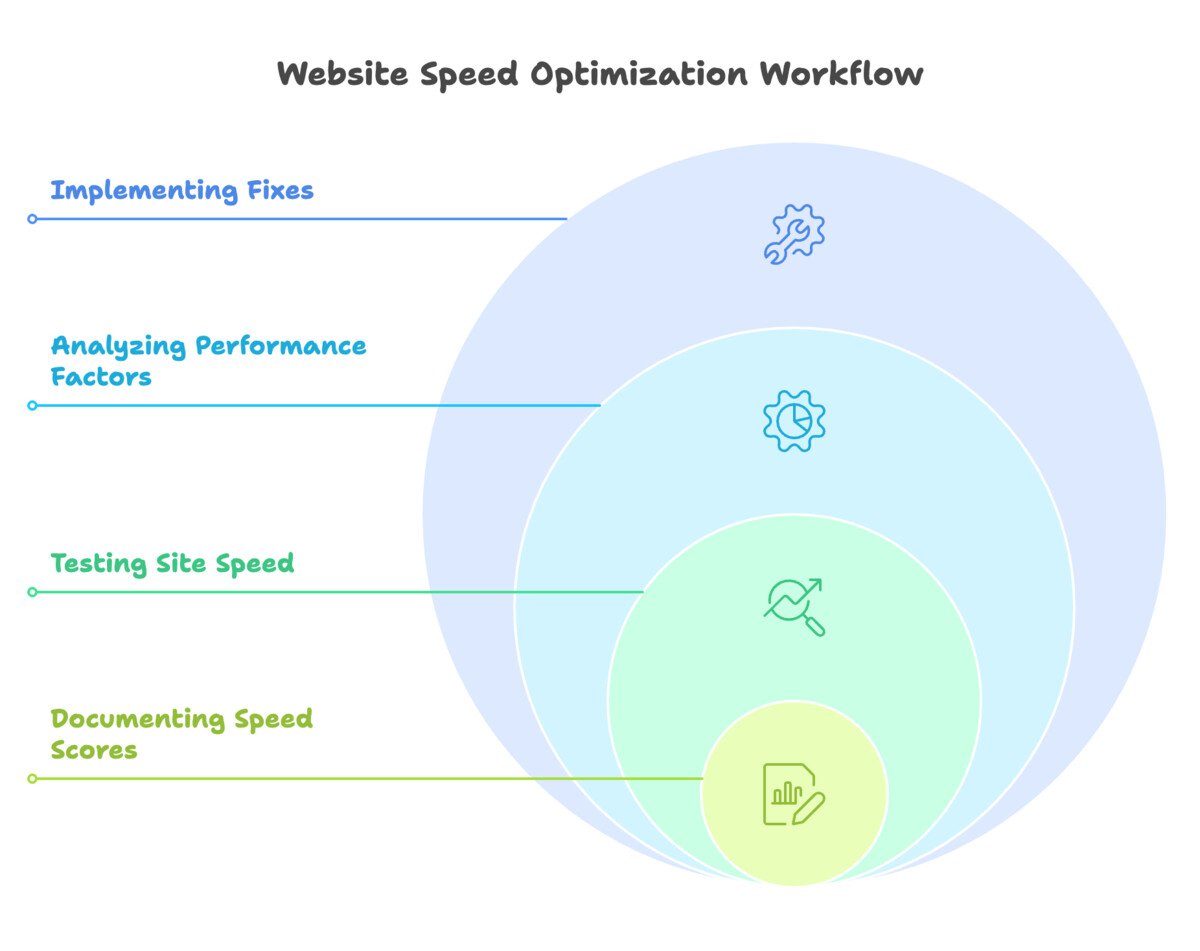
This section outlines a realistic, step-by-step approach used by professional performance engineers.
Step 1: Audit Setup and Baseline Measurement
Before making changes, gather benchmark data:
- Run Lighthouse in Incognito mode
- Disable browser extensions
- Set the network throttling to “Simulated Fast 3G”
- Clear cache between runs
- Run the test at least 3 times
Why multiple runs?
Main-thread activity, CPU throttling, and background processes cause variance.
Record these values:
- LCP
- CLS
- INP
- TTFB
- JavaScript execution time
- Number of network requests
This creates a clear baseline to diagnose your bottlenecks.
Step 2: Progressive Optimization
Start with the heaviest impact areas first:
- Fix slow server responses (TTFB)
- Optimize images (largest file sizes)
- Eliminate render-blocking CSS and JS
- Reduce JavaScript bundles
- Improve accessibility
- Clean up console errors
Test after each major change. Lighthouse reflects improvements instantly, allowing you to isolate what worked.
Step 3: Final Verification and Regression Prevention
Once scores hit 100/100:
- Test on multiple devices
- Test in private/incognito mode
- Test using PageSpeed Insights
- Monitor real-world data with Chrome UX Report (CrUX)
Finally, set up continuous performance monitoring.
Even small updates—like adding a new library or unoptimized image—can break your perfect score.
Frequently Asked Questions (FAQs)
To complete your article with clarity and user-focused depth, here are detailed, comprehensive answers to the most common questions related to achieving a perfect Lighthouse score.
1. Why does my Lighthouse score fluctuate every time I run the test?
Lighthouse scores naturally vary because the test environment changes subtly with each run. Even when using the same device and browser:
- CPU load fluctuates
- Background processes can temporarily slow execution
- Network latency varies
- Browser caching conditions differ
- Extensions or paused background tabs may affect performance
For consistent measurements:
- Run Lighthouse in Incognito mode
- Disable all extensions
- Keep only one tab open
- Use Simulated Fast 3G or Mobile throttling
- Run the test multiple times and average the scores
Even Google recommends 3–5 test runs before trusting the results.
2. Is achieving a 100/100 Lighthouse score necessary for SEO?
A perfect score is not required, but a high Lighthouse score strongly correlates with better SEO outcomes.
Here’s why:
- Faster-loading pages reduce bounce rates
- Better accessibility improves user interaction
- Proper metadata ensures search engines read your site correctly
- Strong performance boosts user engagement signals
- Google prioritizes fast, mobile-friendly pages
Google’s Core Web Vitals are now part of the ranking algorithm, and Lighthouse tests many related metrics.
So while 100/100 isn’t required, it gives you the strongest possible technical foundation for ranking well.
3. My images are optimized, but my LCP is still slow — why?
LCP depends on four major factors, not just image optimization:
- Server response time (TTFB)
- Render-blocking CSS or JS
- Lazy-loading images incorrectly
- Not preloading the LCP image
If your hero image is lazy-loaded, LCP will suffer — the browser waits too long before loading it.
To fix this:
- Remove lazy-loading from the LCP image
- Preload the hero image
- Serve in AVIF/WebP
- Improve hosting or caching
LCP is the most sensitive performance metric and often the last one to hit perfection.
4. Can I achieve a 100/100 Lighthouse score using WordPress?
Yes — but only with strict optimization.
WordPress sites often struggle due to:
- Heavy themes
- Multiple large plugins
- Unoptimized images
- Slow hosting
- Render-blocking scripts
To reach 100/100:
- Use a lightweight theme (GeneratePress, Astra, Blocksy)
- Avoid page builders when possible
- Use caching plugins (WP Rocket, LiteSpeed Cache)
- Compress and convert images to next-gen formats
- Host fonts locally
- Reduce or replace heavy plugins
Achieving perfect scores on WordPress is harder than on static or modern JS frameworks — but absolutely possible.
5. Does using a CDN guarantee better Lighthouse results?
A CDN helps, but doesn’t guarantee a perfect score.
A CDN improves:
- Global load times
- TTFB
- Image delivery
- Caching efficiency
But a CDN cannot fix:
- Excessive JavaScript
- Poorly structured HTML
- Slow render-blocking code
- Accessibility issues
- SEO metadata errors
Think of a CDN as the highway — but the performance of your car (your code) still matters.
6. Should I rely on Lighthouse alone to evaluate website performance?
No — Lighthouse is a powerful diagnostic tool, but it represents lab data, not field data.
For a complete picture:
- Lighthouse = simulated test
- PageSpeed Insights = simulated + real user data
- Chrome UX Report (CrUX) = real data from your users
- WebPageTest = extremely detailed performance waterfall
- DevTools = main-thread and network insights
Lighthouse is an excellent starting point, but not a final judgment.
Conclusion
Achieving a perfect Lighthouse score is not about chasing a number — it’s about mastering the fundamentals of what makes the modern web fast, stable, accessible, and search-ready. When you understand how each metric works, from LCP and INP to TTFB and CLS, you begin to see your website’s performance not as a set of isolated problems but as an interconnected system.
By applying these principles:
- Your website loads faster
- Users enjoy a smoother experience
- Search engines interpret your content more effectively
- Your technical foundation becomes future-proof
A 100/100 Lighthouse score is absolutely achievable if you follow the structured workflow:
- Audit your current performance
- Fix server-side bottlenecks
- Optimize critical rendering paths
- Minimize JavaScript
- Optimize images and fonts
- Ensure accessibility
- Validate SEO fundamentals
- Use advanced techniques like preload, preconnect, and critical CSS
With continuous monitoring and disciplined development practices, your perfect score can be maintained for months or even years.
This is the path used by high-performance teams across the industry — and now by you.